Managing Units
Add, edit, and track units within a property, and read unit status badges.
For apartment buildings and multi-family properties, units are where tenants and leases actually attach. Open a property's Manage Units action to get here.
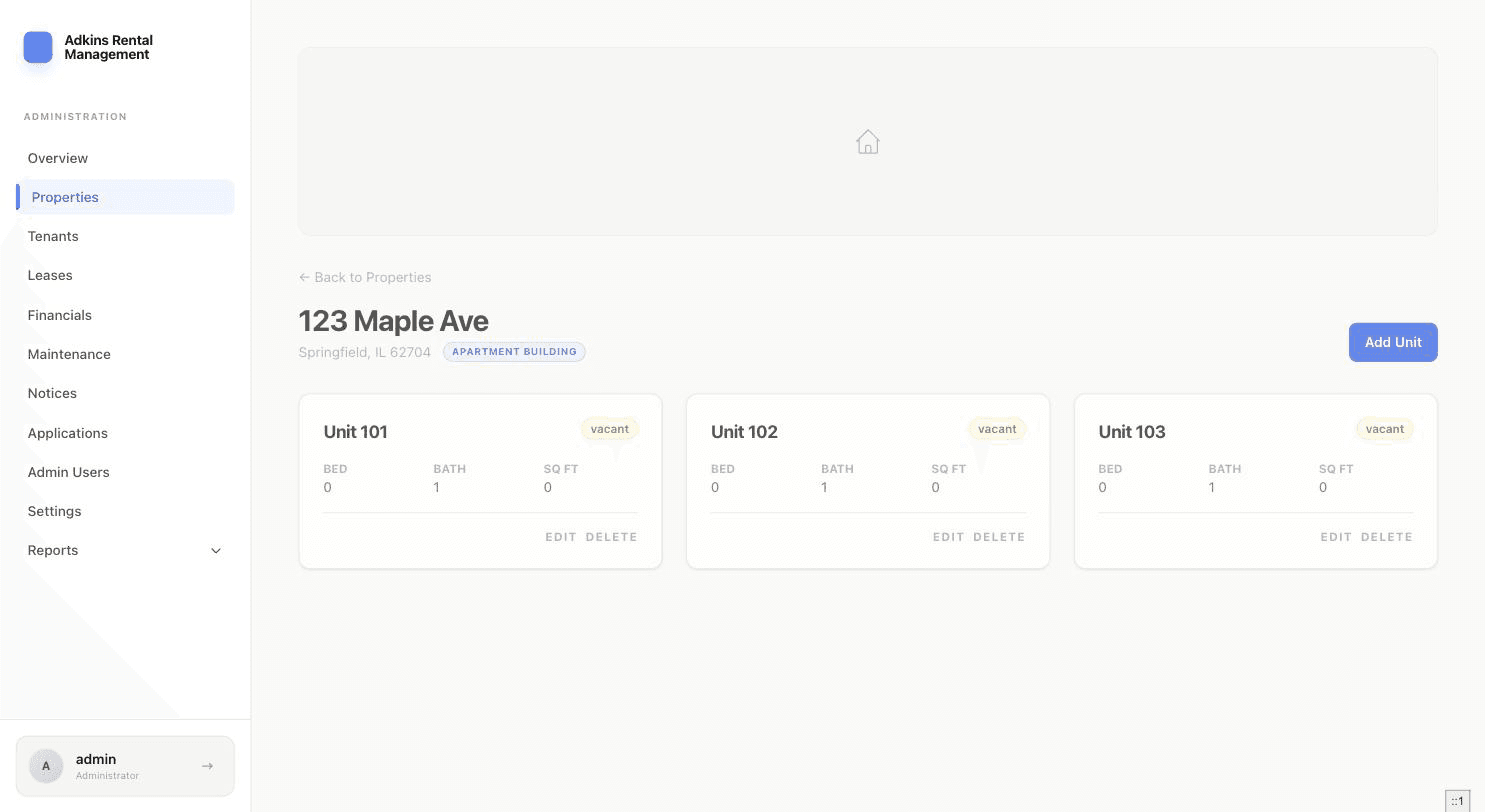
Adding a unit
- 1Click Add UnitFound at the top right of the Property Details page.
- 2Fill in the unit detailsUnit Number is required. Beds, Baths (in half-step increments), and Sq Ft are optional but recommended — they show up on the tenant-facing side too.
- 3SaveNew units start with a vacant status automatically; it switches to occupied once you attach an active lease.
Reading a unit card
Each card shows the unit number, a status badge, and — if occupied — the current tenant's name along with rent and lease-end date. A wrench+count icon appears if that specific unit has open maintenance requests. Edit and Delete are plain text links at the bottom of each card.
Single-unit properties
If the property type is Single Family, Condo, or Townhouse, there's no unit list at all — instead you'll see one Occupancy card showing whether it's occupied (with the tenant's name, rent, and lease-end date) or a note that no active lease is on file.